Joining a Canva Pro team unlocks premium templates, brand kits, and collaboration tools that can transform how you and your colleagues create visuals. Whether you’ve been invited by an organization or want to set up a team for your own business, the process is simpler than you might think—once you know the right steps.
In this complete step-by-step guide, you’ll learn exactly how to join a Canva Pro team in 2026, from accepting an invitation to troubleshooting common access issues. Follow along to get set up quickly and start designing with your team today.
Introduction
Canva has become one of the most widely used design platforms in the world, and its Pro tier unlocks a substantial set of features that free users simply cannot access. From the full premium template library to Brand Kit, Magic Studio AI tools, background remover, and shared team folders, Canva Pro is designed for people who create content regularly. One of the most cost-effective ways to access these features is by joining a Canva Pro Team, where a single subscription owner can invite others into a shared workspace.
This guide explores How to Join a Canva Pro Team: Complete Step-by-Step Guide (2026) with clear, practical guidance. Whether you have been invited by an employer, a collaborator, a friend, or a subscription-sharing group, the process follows a predictable path. Understanding that path in advance helps you avoid common pitfalls such as accepting an invite with the wrong email address, losing access to designs created in a personal account, or misjudging what a team membership actually includes.
It is worth being upfront about one thing: Canva’s own terms of service govern how team seats may be shared, and those terms change over time. Always confirm the current rules directly with Canva before joining any team, particularly one organized outside your own organization. This article focuses on the practical mechanics of joining, the concepts behind team structures, and the habits that keep your access secure and productive.
Key Concepts
Before walking through the steps, it helps to understand the vocabulary Canva uses. A Canva Pro Team is a shared workspace created by a Pro, Teams, or Enterprise subscriber. The person who pays for the subscription is typically the team owner or administrator. Everyone else joins as a member. Members get Pro-level features while working inside that team, but the subscription itself belongs to the owner.

Team versus personal account
Your Canva account is a single login, but it can belong to multiple teams. When you sign in, you can switch between your personal workspace and any team you have joined. Designs you create inside a team generally live in that team’s folder structure, and access depends on your role. This distinction matters enormously: if you leave or are removed from a team, you may lose access to designs stored there unless they were transferred or shared with your personal account first.
Roles and permissions
Canva teams assign roles such as administrator, brand designer, member, or viewer, depending on the plan and the owner’s settings. Roles determine whether you can invite others, manage brand assets, publish templates, or simply create and edit designs. Knowing your role helps you set realistic expectations about what you can do after joining.
Invitations and email matching
Team invitations are tied to a specific email address. If you are invited at your work email but sign in with a personal Gmail address, the invitation will not attach to the account you are using. This single detail causes a large share of failed joins, so verify which email the invitation was sent to before you click anything.
Seats and billing
Pro teams have a limited number of seats based on what the owner purchased. Joining consumes one of those seats, which is why owners often ask for confirmation before sending an invite. Some organizations manage seats centrally and may remove members when projects end.
Deep Dive
Understanding the fundamentals of How to Join a Canva Pro Team: Complete Step-by-Step Guide (2026) helps you make informed decisions, so let’s look more closely at what actually happens during the join process and what to watch for afterward.
What happens when you accept an invitation
When an administrator invites you, Canva sends an email containing a join link. Clicking that link prompts you to either sign in to an existing Canva account or create a new one. If the email matches an existing account, the team appears in your account switcher almost immediately. If you create a new account at that moment, double-check that you are using the invited address, because creating a second account with a different email will not grant access to the team.
The difference between joining and being added
In some configurations, particularly Enterprise plans with domain verification, an administrator can add you to a team directly without a click-through acceptance. You may simply discover a new team in your account switcher the next time you sign in. In most Pro and Teams scenarios, however, you will receive an email or an in-app notification that requires action. If you expected an invite and none arrives, check spam, promotions tabs, and any email filtering rules your organization uses.
Moving designs between personal and team spaces
New members often assume their personal designs automatically appear in the team. They do not. To bring work into the team, you can share individual designs with the team, move them into team folders if your role permits, or recreate them using team brand assets. Plan this transition deliberately, because accidentally leaving valuable work in a personal account that you later abandon is a common frustration.
What you gain and what you do not
As a team member, you gain access to Pro features within the team context: premium templates and elements, Brand Kit assets the team has uploaded, Magic Studio tools, background remover, and expanded storage. What you do not gain is ownership of the subscription. You cannot change billing, you may not be able to invite others, and your access can be revoked by the owner. Understanding this boundary prevents surprises later.
Best Practices
Reliable information and consistent habits lead to better long-term outcomes. The following practices apply whether you are joining a team at work, through a community group, or via a friend’s subscription.
- Verify the invitation source. Confirm the invite came from someone you trust and that the sender domain looks legitimate. Phishing emails mimicking Canva invitations do circulate.
- Use the exact invited email. Sign in with the address the invitation was sent to, or ask the admin to resend to your preferred address.
- Review your role before accepting. Ask what permissions you will have, especially if you need Brand Kit access or the ability to publish templates.
- Back up important designs. Download or duplicate key files before moving between accounts so you are not dependent on continued team access.
- Enable two-factor authentication. A shared workspace often contains brand assets and client work; securing your login protects everyone.
- Keep personal and team work separate. Use folders deliberately so you always know which workspace owns a given design.
- Document your exit plan. If you might leave the team someday, keep copies of your own work in your personal account.
- Respect the owner’s terms. Do not resell or sublicense access. Follow Canva’s terms of service and the owner’s expectations.
Step-by-Step Guide
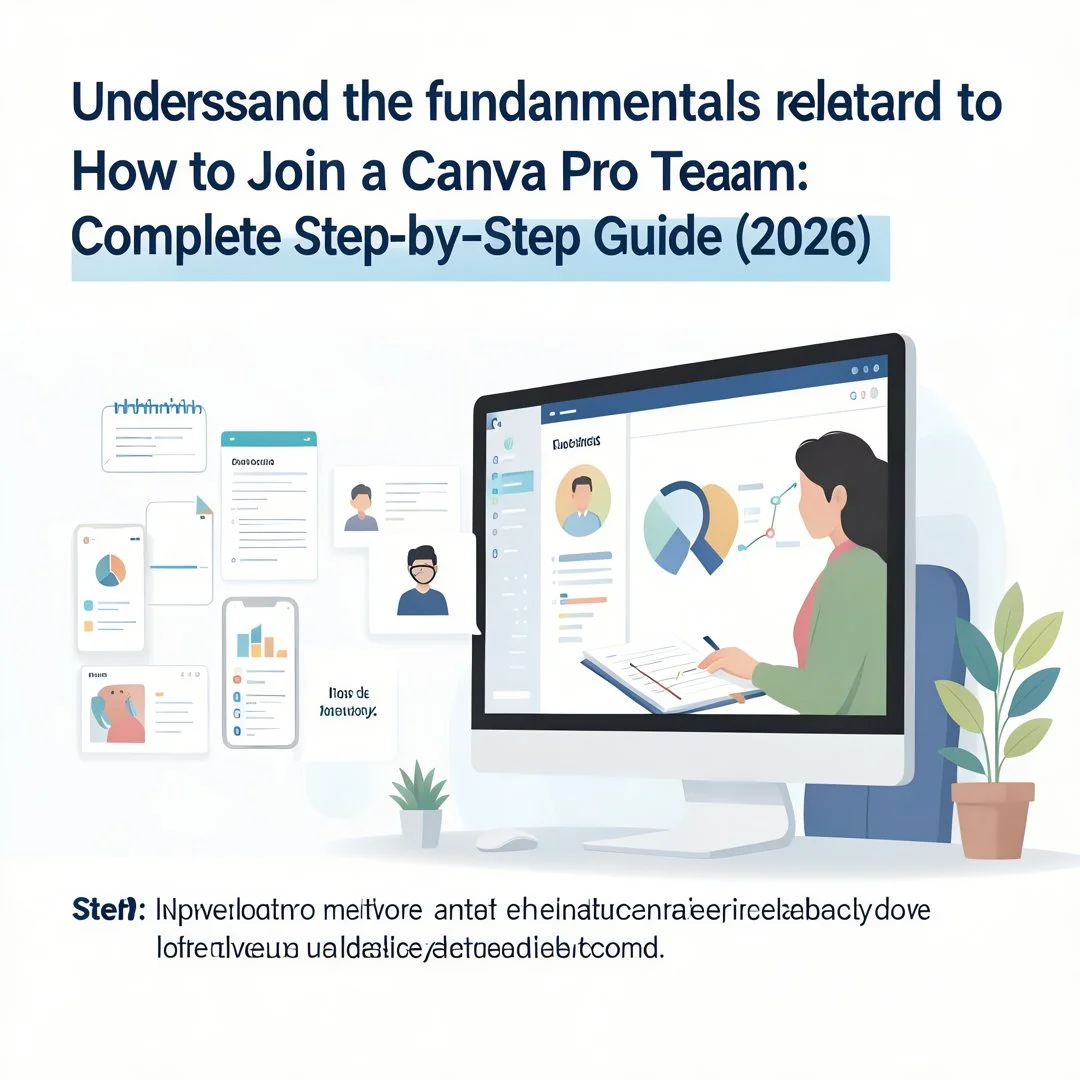
Step 1: Understand the fundamentals
Start by clarifying what a Canva Pro Team actually is and what your role will be. Confirm who owns the subscription, how many seats exist, and what permissions you will receive. Ask whether the team uses domain verification or open invitations, and whether your access is tied to an organizational email. This groundwork prevents most downstream confusion.

Step 2: Assess your starting point
Check whether you already have a Canva account and which email it uses. Sign in and look at your account switcher to see any teams you already belong to. Identify any designs in your personal account that you will want to bring into the team, and note whether you are on the free plan, since joining a Pro team changes your available features inside that workspace.

Step 3: Set clear goals
Decide what you want from the team membership. Are you there to collaborate on brand assets, access premium templates for social media, produce client presentations, or manage a shared content calendar? Clear goals help you choose the right role, organize folders sensibly from day one, and measure whether the membership is delivering value.
Step 4: Gather necessary resources
Collect what you need before accepting: the invitation email, the correct Canva login credentials, two-factor authentication set up on your account, and any internal guidelines your organization has about shared design tools. If you are joining a workplace team, ask for the brand guidelines or Brand Kit documentation so you can use team assets correctly.
Step 5: Apply the core methods
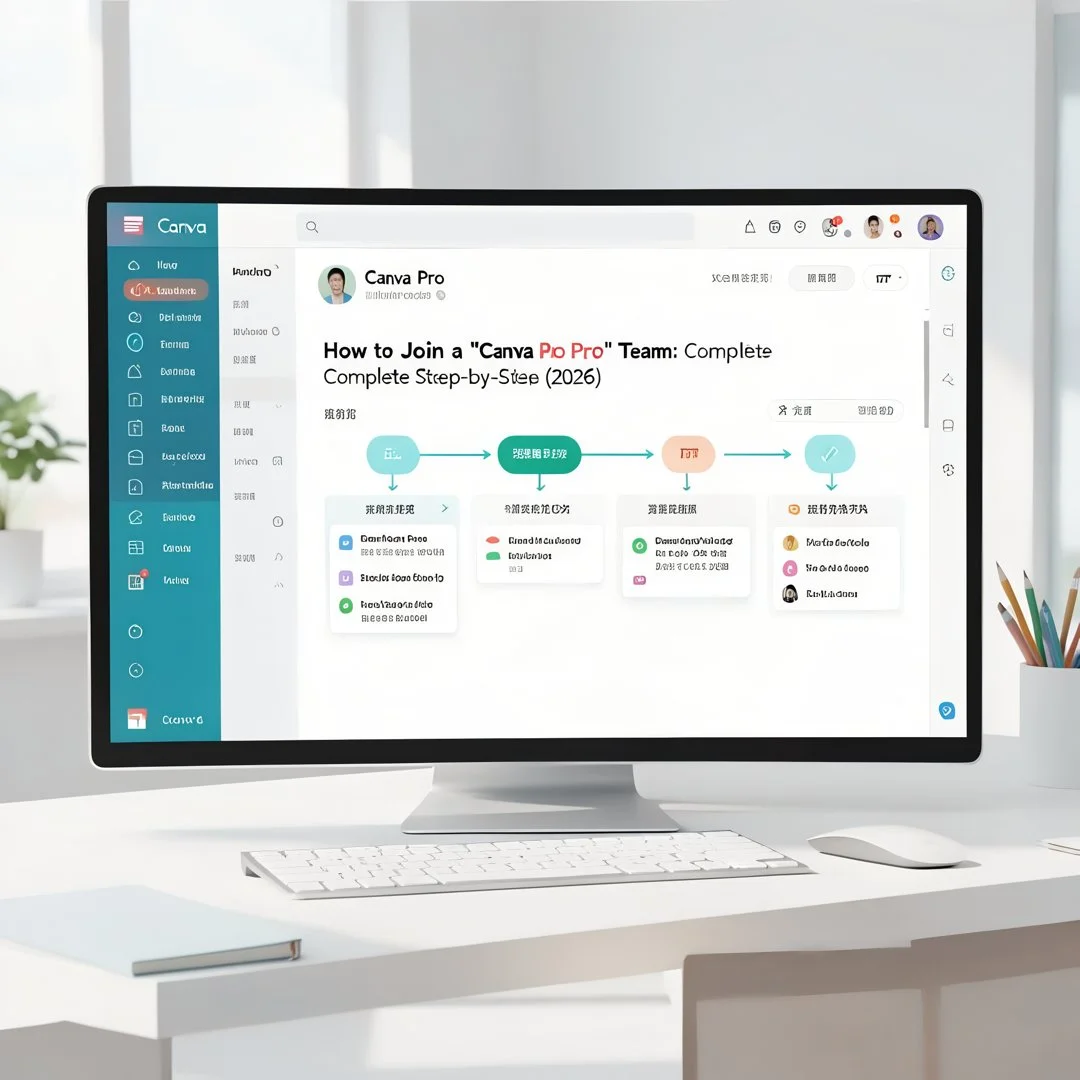
Open the invitation email and click the join link. Sign in with the invited email address, or create an account using that exact address if you do not yet have one. Follow the on-screen prompts to accept the team invitation. Once inside, open the account switcher to confirm the team now appears, then explore the team folders, Brand Kit, and settings to orient yourself. If no invitation arrives, ask the administrator to resend it or to check whether your seat was successfully allocated.

Step 6: Monitor your progress
After joining, spend a week noting what works and what does not. Confirm that premium features are available inside the team workspace, that you can access shared folders, and that your role matches your needs. Check your email for any team notifications or policy updates from the owner. If something is missing, raise it with the administrator early rather than working around it.
FAQ
What should I know about How to Join a Canva Pro Team: Complete Step-by-Step Guide (2026)?
The most important things to know are that invitations are tied to a specific email address, that team membership grants Pro features only within that team workspace, and that the subscription owner controls access. You should also know that designs stored in a team may become inaccessible if you leave, so keep copies of critical work in your personal account. Finally, confirm the current Canva terms of service and the owner’s expectations before joining, especially for teams organized outside a formal organization.
Who is this guide for?
This guide is for anyone who has been invited to a Canva Pro Team or is considering joining one, including employees onboarding into a marketing or design team, freelancers collaborating with clients, students.
You now have a solid foundation for How to Join a Canva Pro Team: Complete Step-by-Step Guide (2026). Apply the best practices above and revisit this guide as your needs evolve.